Weblock Quick Start
For Kids - Get started in 2 minutes!
For Children
A safe web browser controlled by your parent.
Quick Setup
1 Choose "Child" and Tap Next
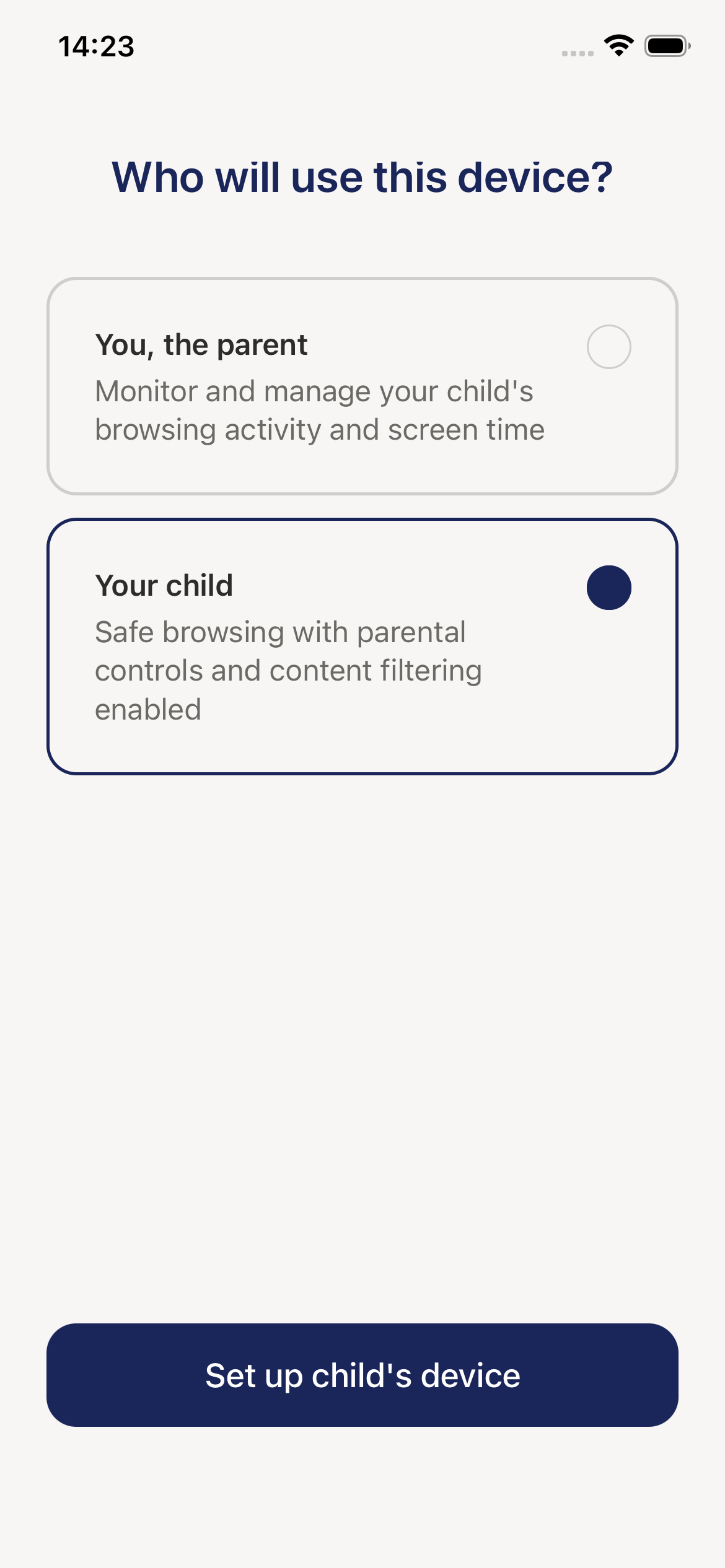
When you first open Weblock, select "Child" and tap "Next".
2 Tap the "Pair" Button
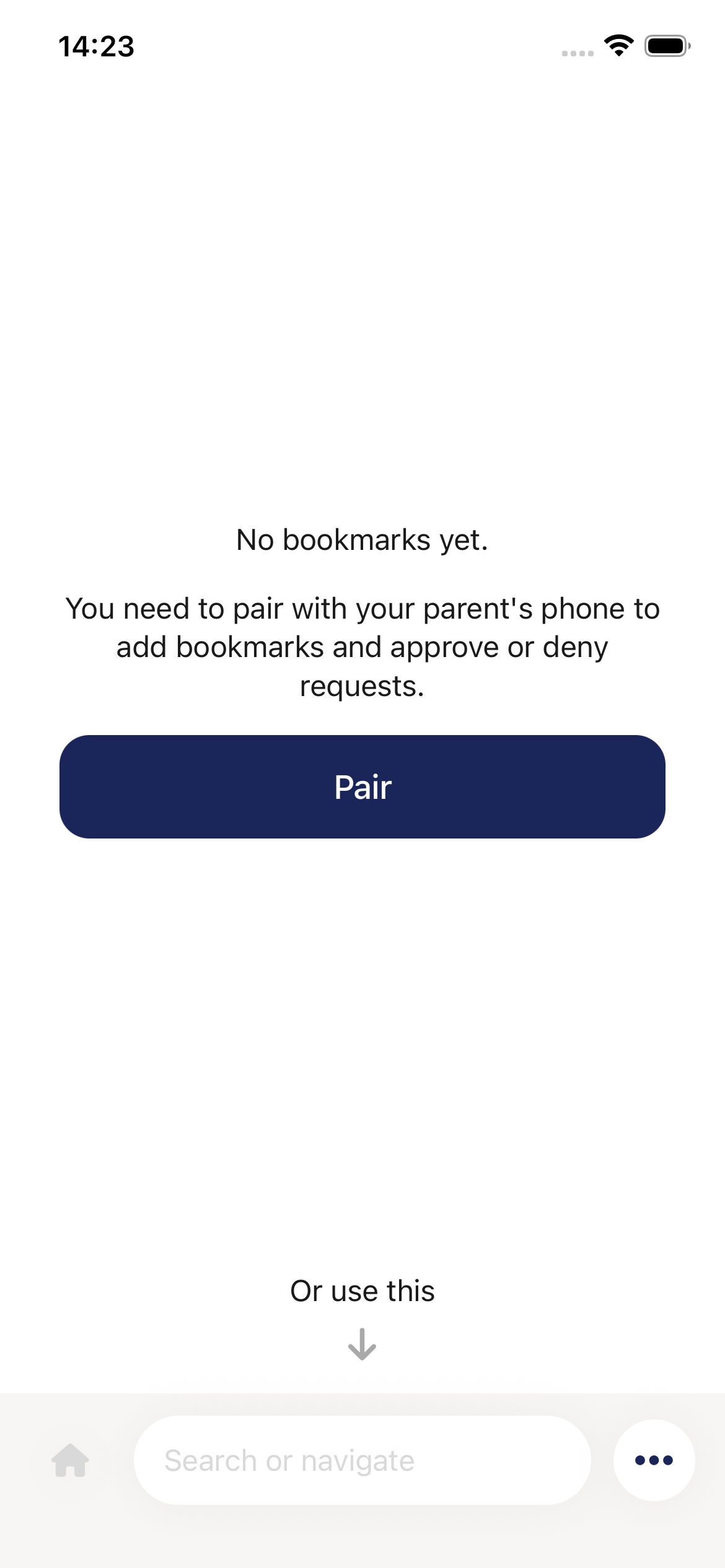
You'll see the main screen with a "Pair" button. Tap it to continue.
3 Show QR Code to Parent
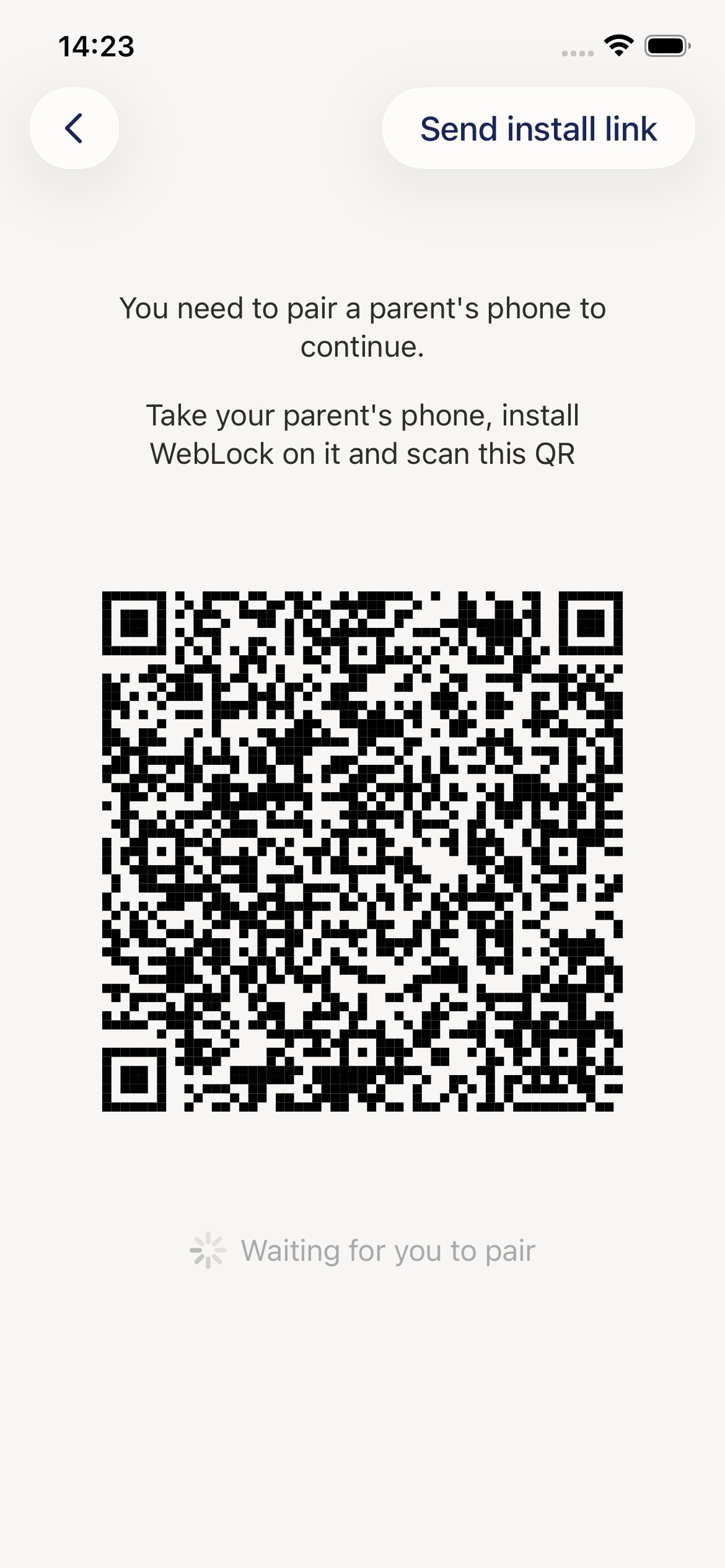
- Keep your screen on and bright
- Give your device to your parent
- They'll scan the QR code with their device
- Wait a few seconds for pairing
Done! You're connected and ready to browse.
Using Weblock
Browsing Websites
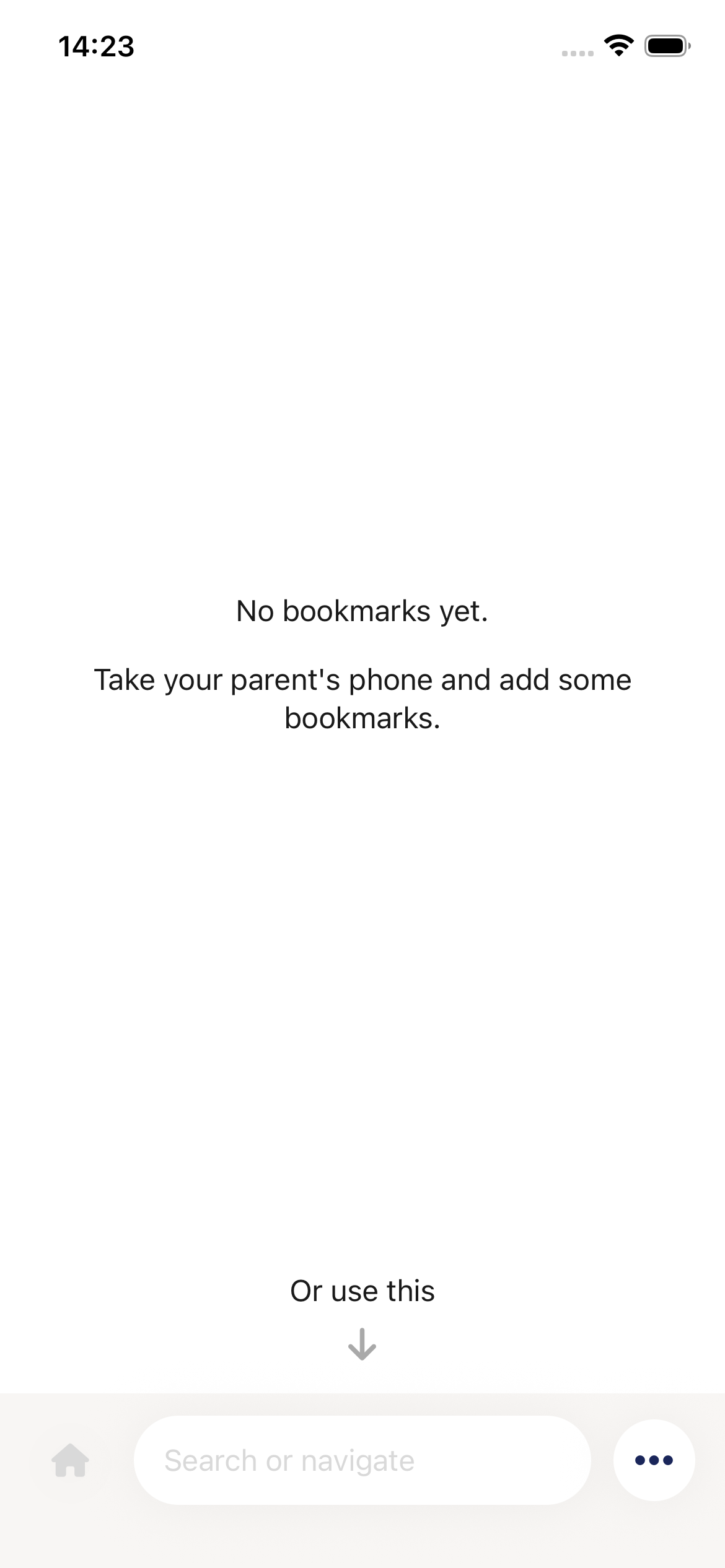
- Open approved websites normally
- Your bookmarks appear on the home screen
- Tap any bookmark to visit that website
When a Website is Blocked
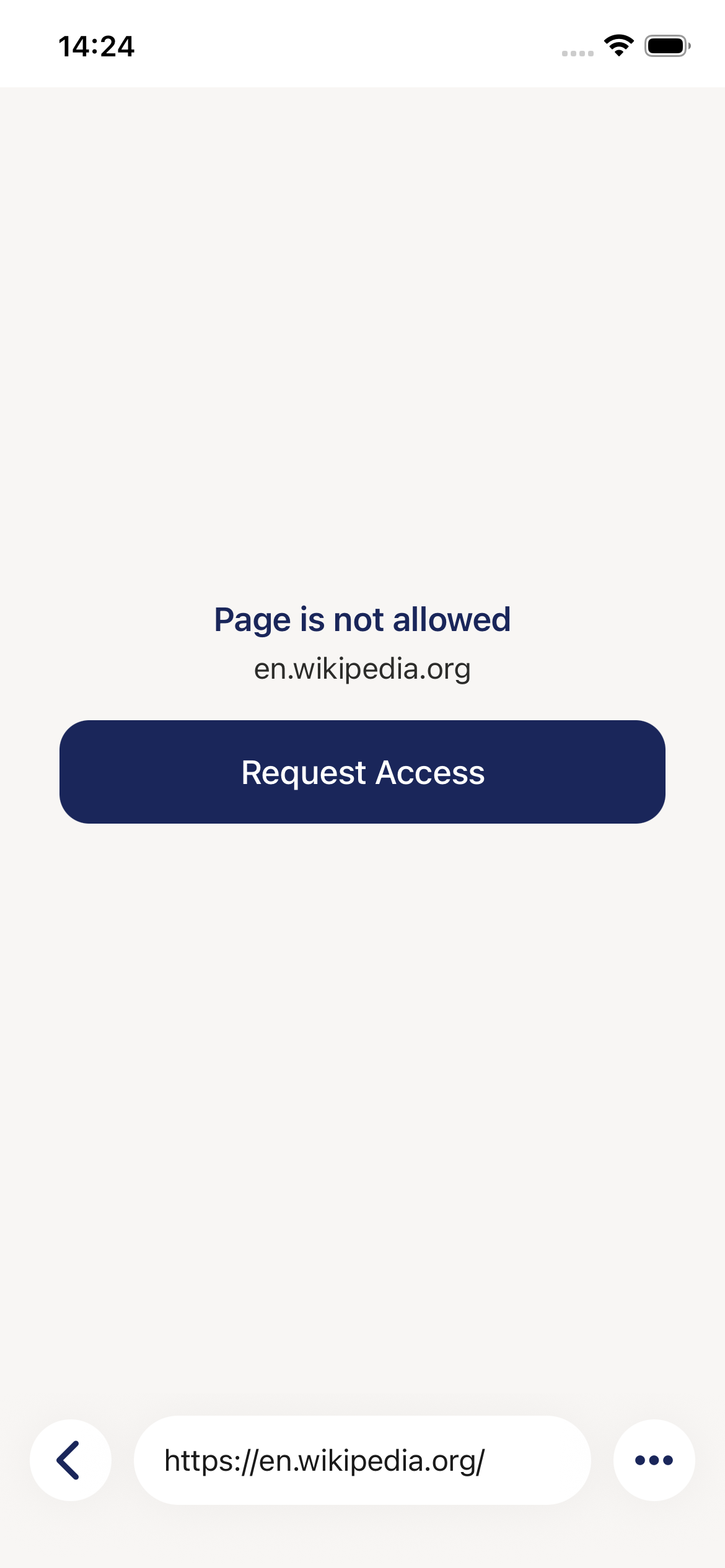
If you see "Page is not allowed":
- Tap "Request Access" button
- Wait for your parent to approve
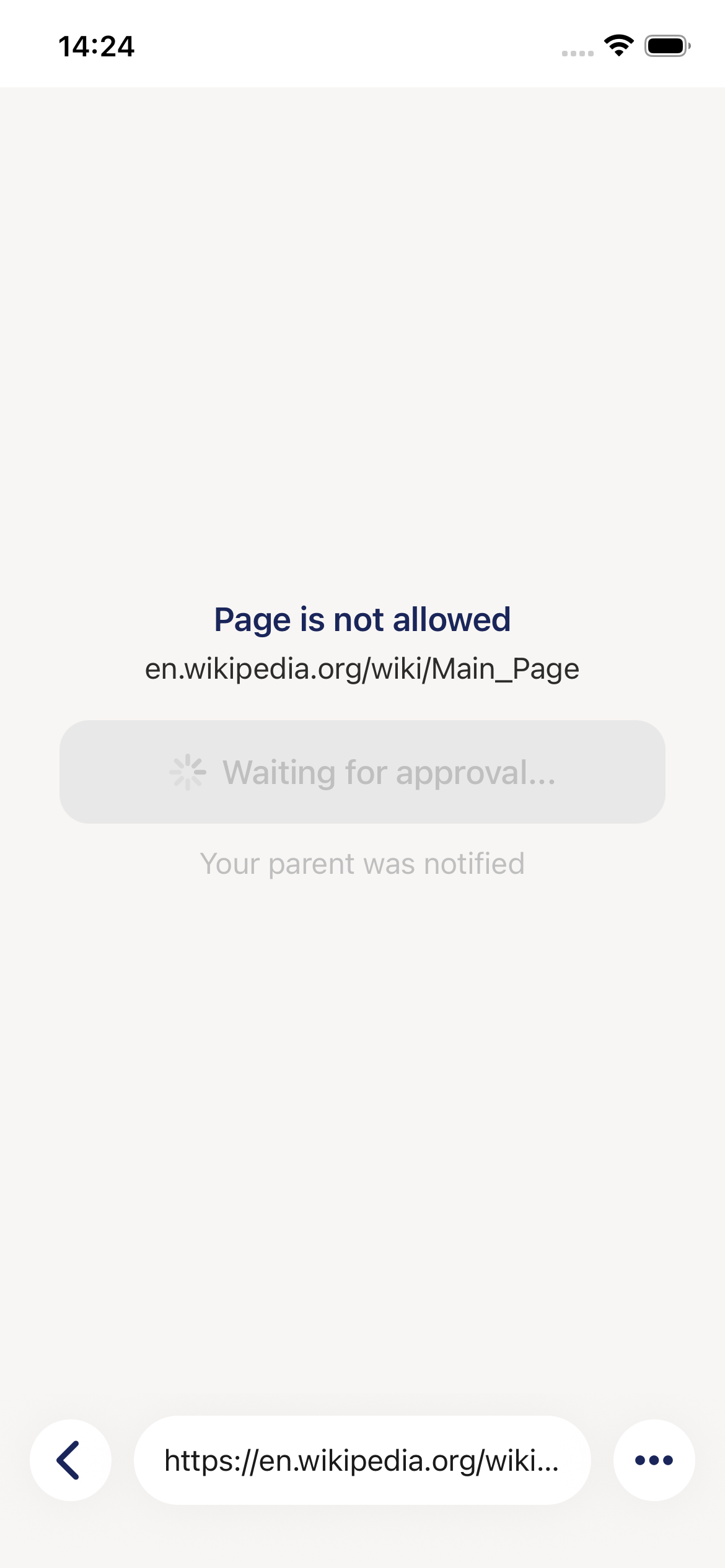
The button changes to "Waiting for approval..." - be patient!
Quick Tips
DO:
- Ask permission for new websites
- Tell your parent if you see something bad
- Use your bookmarks
DON'T:
- Try to uninstall Weblock (it won't work)
- Get upset if a site is blocked (talk to your parent)
- Share your device during Weblock browsing
Need More Help?
See the Complete Child's Guide for detailed instructions.